AI photo restoration
Restore old photos online with AI
Upload a scan or a phone picture of an old print. 4K Photo Studio repairs scratches, creases and tears, brings back faded detail, sharpens faces and can colorize black-and-white photos, then delivers the result in 4K resolution, right in your browser.
3 free credits · 4K results · No account or card needed · JPEG, PNG or WEBP up to 10 MB
Results vary with the condition of the original photo.
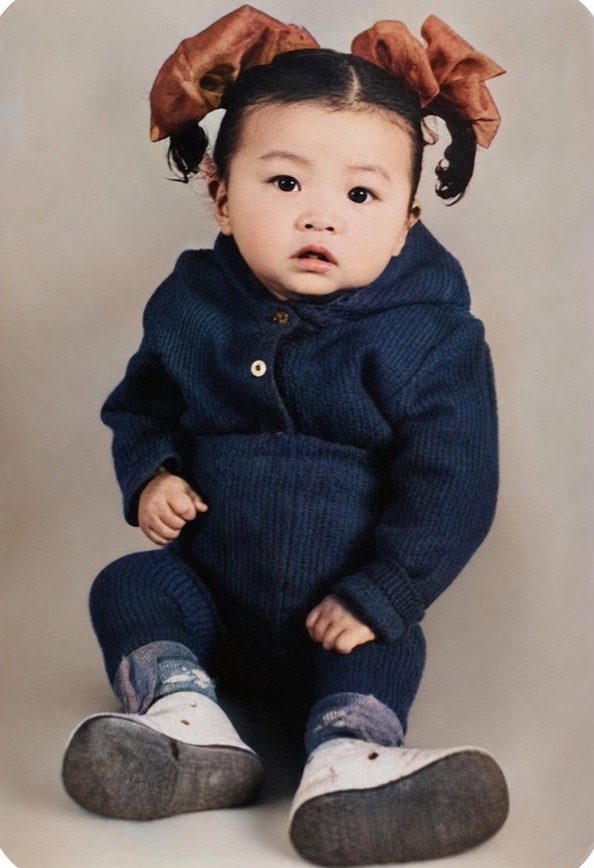
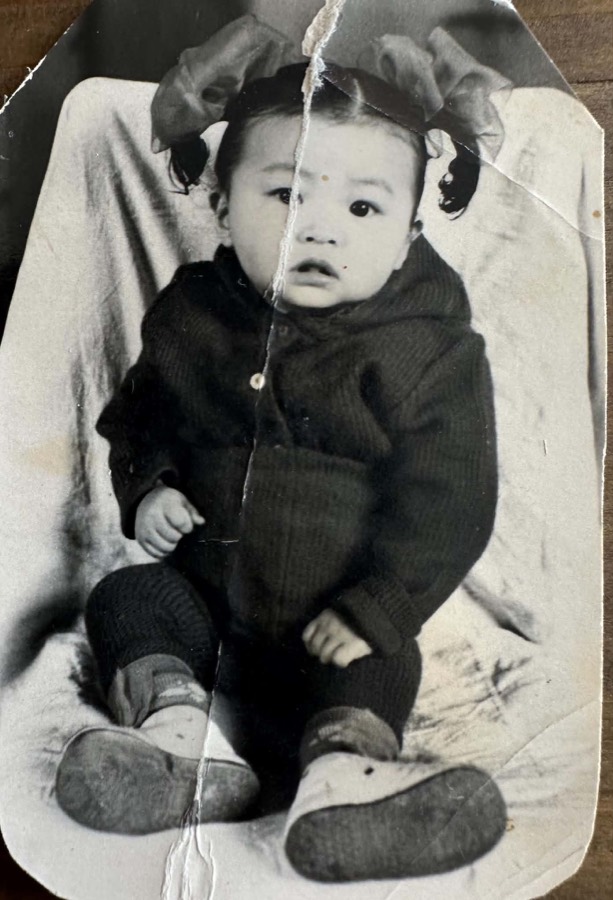 BeforeRestored
What it fixes
Most old photos suffer from more than one problem. A single restoration handles them together.
Scratches, creases and tears
Cracks, fold lines, stains and missing corners are filled in so the photo looks whole again.
Fix damaged photos →Fading and yellowing
Washed-out prints get their contrast and detail back, and color casts from aging are corrected.
Restore faded photos →Black and white to color
Turn on Colorize and the AI adds natural skin tones, fabrics and backgrounds to monochrome photos.
Colorize photos →Before and after
Drag the slider on each photo to compare the original with its restored version. Results vary with the condition of the original photo.

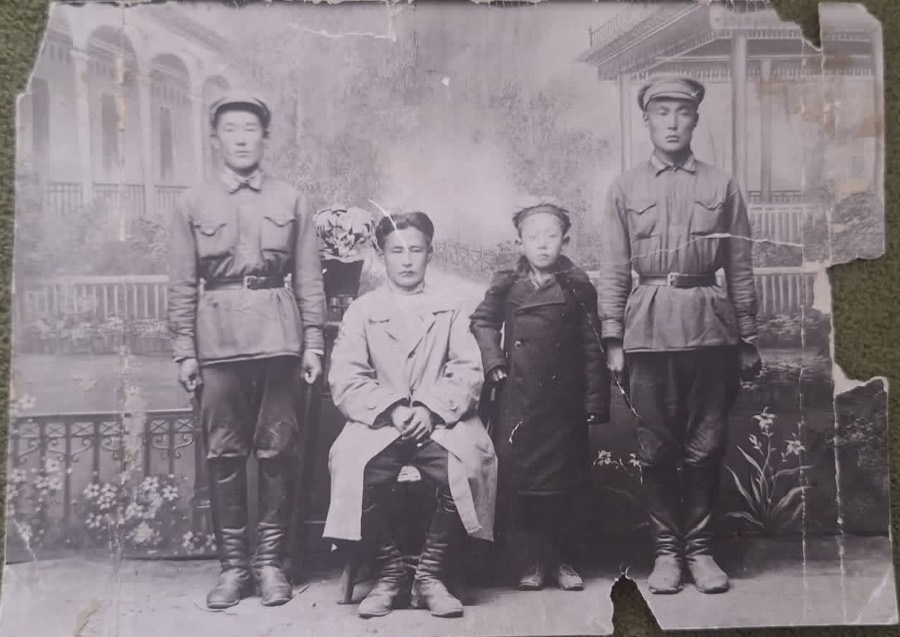 BeforeRestored
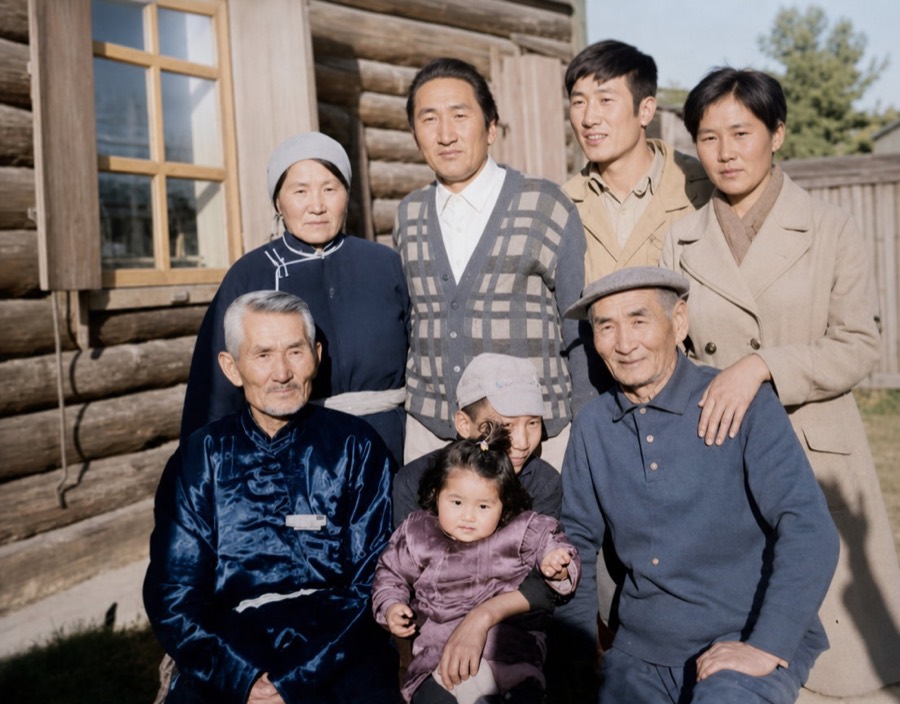
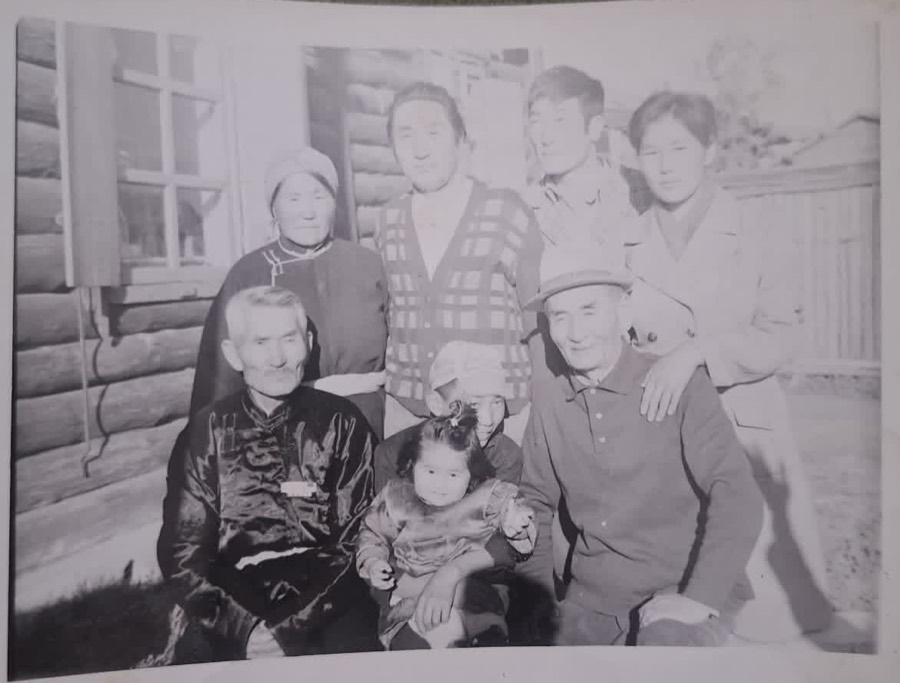 BeforeRestored
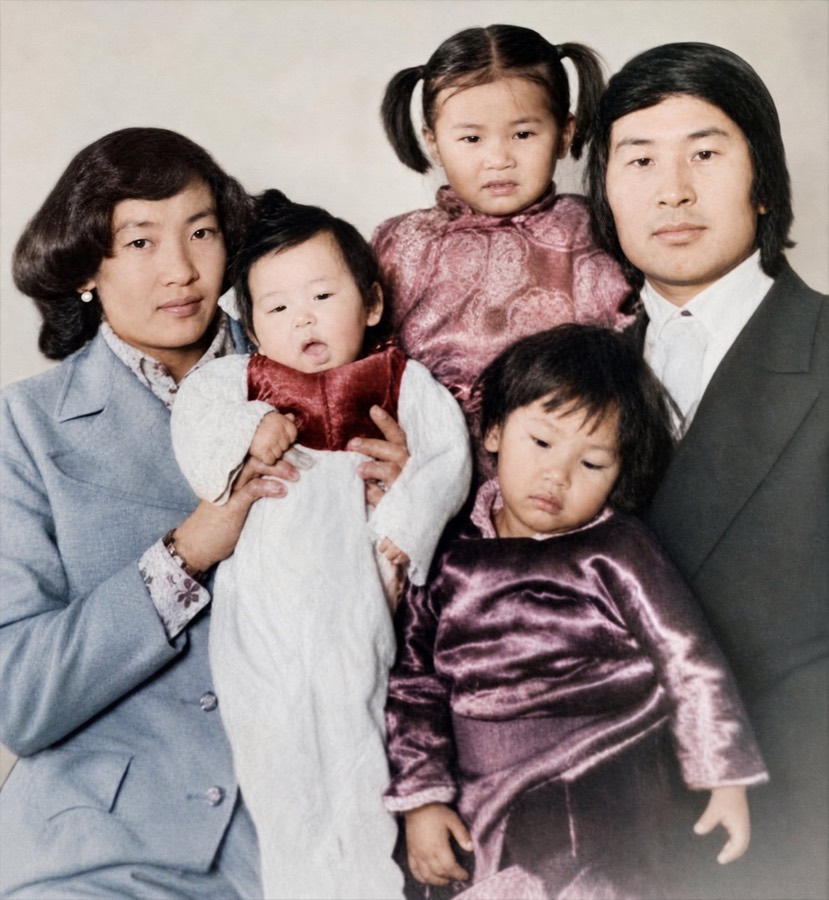
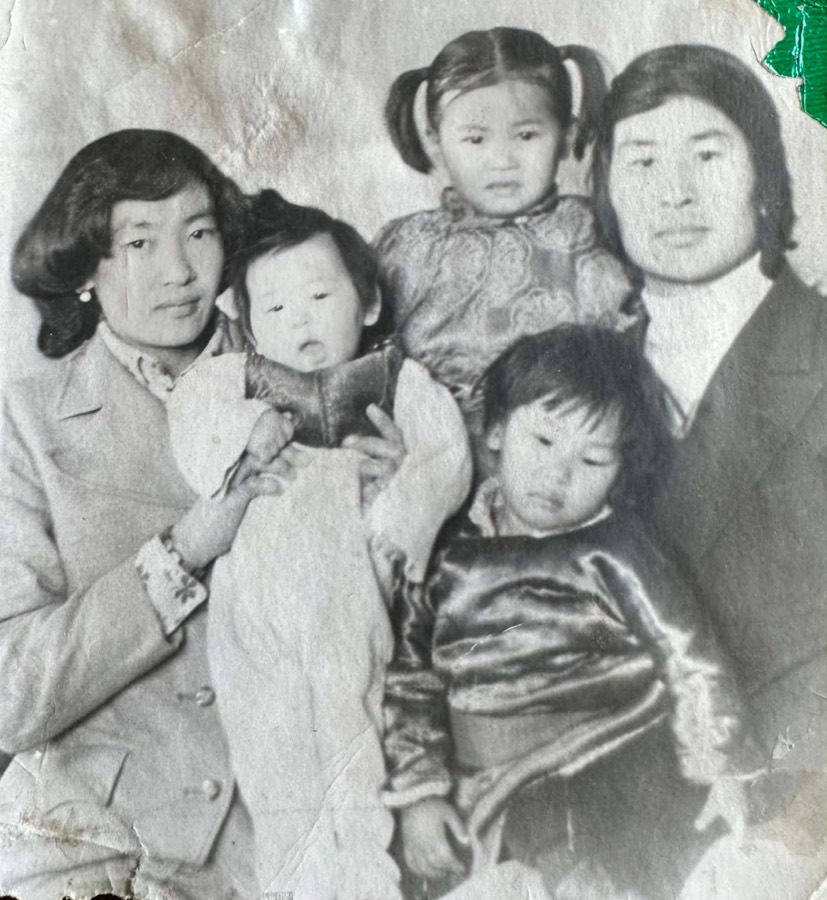 BeforeRestored
How it works
-
Upload
Pick a photo from your phone or computer. A clear scan, or a phone picture of the print lying flat in even light without glare, works best.
-
Restore
For black-and-white photos, tick “Colorize”. The AI repairs damage, lifts fading and sharpens faces, then upscales the result to 4K. Busy or badly damaged backgrounds may be tidied up.
-
Save and share
Compare with the slider, save the 4K photo to your phone, or share a before-and-after card with family.
Free to start. No subscription.
Your first 3 restorations are free, with no account. Sign in with your email for 2 more. After that, buy 10 credits for $4.99 or 20 for $7.99. Credits you buy stay on your account and never expire. Each photo uses 1 credit, and a failed restoration gives the credit back automatically.

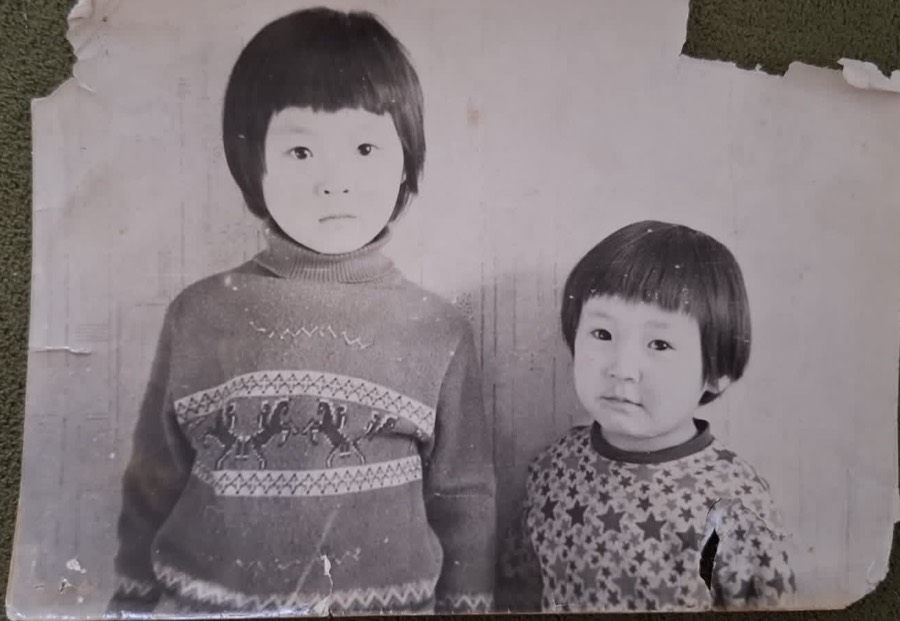 BeforeRestored
Questions
Is it really free?
Yes, to start. You get 3 free credits without an account, and 2 more when you sign in with your email. Each photo uses 1 credit, and if a restoration fails the credit goes back automatically. After that, credit packs start at $4.99 with no subscription.
What resolution are the results?
Every restoration is upscaled to 4K resolution: about 8 megapixels, the same number of pixels as a 4K screen, kept in your photo's own shape. That's enough for a sharp 8×10 inch (20×25 cm) print.
What kind of photos work best?
Scans or phone pictures of old prints: black-and-white portraits, faded color photos, and pictures with scratches, creases, stains or torn corners. Results vary with the condition of the original, and the clearer the input, the better the result. Photograph the print flat, in even light, without glare, and crop out the album page.
What files can I upload?
JPEG, PNG or WEBP images up to 10 MB.
Will the colors be accurate?
Colorization is the AI's best estimate of natural color. Skin, fabric, sky and plants usually look right, but it can't know the true color of a particular dress or car. If exact colors matter, keep the original alongside the colorized version.
Does the AI change faces?
It sharpens and repairs faces while keeping their features, but like any AI restoration it has to reconstruct detail that was lost. The more damaged the face, the more it fills in, so always compare with the original.
Are my photos private?
Your photos are used to produce your restoration. We don't sell them and we don't use them to train AI models. The privacy policy explains exactly which services handle them.
Does it work on my phone?
Yes, in any modern mobile browser, with nothing to install. You can also add it to your Home Screen to open it like an app. If you opened the link inside Facebook, Messenger or Instagram, choose “Open in browser” first, because in-app browsers can block the photo picker.
Keep it on your Home Screen
Add 4K Photo to your phone's Home Screen and open it like an app, with nothing to download from an app store. On Android it takes one tap. On iPhone, we'll show you the three quick steps in Safari.
Learn before you restore
Protect the original photograph
Restoration improves a digital copy. These practical guides help you capture the original safely and preserve the family story attached to it.
How to scan old photos
Choose a useful resolution, avoid scanner damage and save a clean master file.
Read the scanning guide →How to preserve family photos
Handle, label, store and back up photographs so the originals survive.
Read the preservation guide →Bring a photo back today
It takes a minute to try, and your first restorations are free.